
Agents can only act on the systems they can reach. That makes connectivity the foundation of Workato’s Enterprise AI Control and Execution Platform, and it’s why the apps without an off-the-shelf connector matter so much. Workato’s Connector SDK has long been how teams and partners like PDF Monkey, Procore, and Autodesk close those gaps, and it’s a big part of how Workato grew to more than 17,000 connectors.
AIRO Connector Builder is an AI agent built on the Connector SDK framework. It generates, validates, and releases custom connectors from an MCP client like Claude or Cursor through AIRO Connect, and from inside Workato. It’s available now to everyone with AIRO Connect.
This post covers what makes connector generation hard, what changes when you design a connector around a business process instead of an API spec, and what AIRO does at each step to keep the result safe for production.
Why general-purpose AI struggles with connectors
Connector tooling at Workato has moved from the SDK, to AI-assisted Copilot, to a full-lifecycle agent. The move to an agent matters because of where general-purpose AI assistants fall short. They can read API documentation, but mostly they autocomplete syntax. They don’t understand the SDK’s domain-specific language (DSL), so enterprise APIs turn into round after round of fixes. NetSuite is a good example, with deeply nested schemas, subrecords, internal IDs, and non-standard authentication.
Connector Builder brings SDK expertise into every step of the build:
- Authentication: it recognizes standard and custom SDK authentication patterns, including API key, OAuth 2.0, and client credentials.
- Connector components: it knows when to use wildcard batch actions, batch fetch actions, dynamic triggers, or webhook triggers.
- Pagination and schemas: it implements the right pagination strategy (cursor-based, offset-based, or page token) along with object definitions, pickers, and dynamic schemas.
- The full lifecycle: it goes beyond generating code to validating against the SDK’s structural rules, committing versions, and releasing to production.
Build around your business process, not the API
An API spec tells AIRO what’s possible. It doesn’t tell AIRO what your team actually needs. To show the difference, we built a connector for Front, the customer communication platform, twice.
The first build started from Front’s raw OpenAPI spec. AIRO produced a working API wrapper: 246 operations condensed into five generic CRUD actions with object pickers. It works, but the person building a recipe has to pick Create Record and search a list of more than 30 objects. Searching for “messages” returns several look-alike options, such as channel-level and conversation-level message types, with nothing to say which is which. Then they map fields from hundreds of optional API parameters written in API jargon.
The second build started from a short product requirements document (PRD) describing what the support team actually does: keep Front in sync with helpdesk tickets. The result was Front (Support), a connector with exactly five named actions, including Send Message and List Conversations. It exposes only conversations, tags, and comments, locks the channel to the Support shared inbox, and has no delete or archive actions at all. A builder can configure a step in seconds and can’t accidentally trigger a deletion.
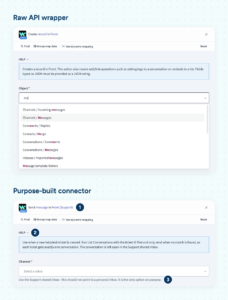
Top: the raw wrapper’s object picker. Bottom: Front (Support), with (1) a named action, (2) help text written for the workflow, and (3) a channel locked to the Support shared inbox.
We built both versions live in our Product Hour, AI Locked Out of Your Enterprise? Unlock It with AIRO Connector Builder. Watch the recording here.
The PRD behind the second connector fits on a page. Condensed, it says:
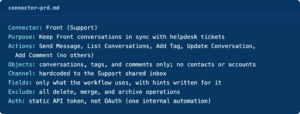
What to put in a connector PRD
The same principles apply to any connector your teams will use:
- Name it for its audience. Add team context to the connector title, like Front (Support), and replace technical API descriptions with plain business-language hints.
- Scope operations to the job. Replace generic Create Record and Update Record actions with named actions like Send Message, and expose only the objects your workflows need.
- Constrain inputs. Hardcode safe parameters, such as a curated list of channels, and hide optional fields that invite configuration errors.
- Leave out destructive actions. Omitting delete and archive endpoints means no recipe can accidentally remove production data.
Under the hood: how AIRO builds and governs a connector
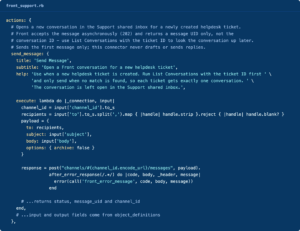
Every SDK connector is a Ruby hash. The connection key holds credentials, fields, and authentication logic, and a test block, usually a simple request to an endpoint like GET /accounts, confirms the credentials work before any action runs. Actions and triggers define what recipes can do, and optional keys cover object definitions, pickers, and helper methods.
Here’s the Send Message action AIRO generated from that PRD. The title, help text and comments all carry the PRD’s rules, down to “first message only, never replies.”
When you build through AIRO Connect, AIRO works through that structure in a consistent sequence:
- Plan from the docs. A documentation lookup tool outlines the SDK’s structure and routes AIRO to the right guidance for the task, whether that’s a new connector, a new authentication method, or new actions.
- Load app-specific guidance. AIRO pulls the exact specifications it needs for the target app’s authentication and data structures.
- Patch and validate. AIRO applies changes as patches, and every patch is checked for both syntax and SDK structure, so invalid code is rejected before it lands.
- Flag risk. AIRO identifies high-risk actions and prompts for manual testing before committing. In the raw Front build, it flagged 14 destructive delete operations.
- Diff, save, and release. AIRO saves the connector as a draft in Workato, then compares it with the previous release and checks for breaking changes before releasing it for recipes to use.
Today you give AIRO your design and governance rules through a PRD. AIRO Playbooks, coming soon, will let your organization define those rules once and apply them to every connector it builds.
Build from your MCP client or inside Workato
AIRO Connect is AIRO delivered as an MCP server, so the sequence above runs from Claude, Cursor, or any other MCP client.
Inside Workato, Connector Builder lives under Tools > Connector SDK. The AIRO chat sits beside the code editor and works from the connector you’re working on or an API spec you upload. Proposed changes show up as inline diffs you can accept or reject line by line, and you can roll back any change through the chat history. When the connector is ready, share it across workspaces with a link or publish it to the Workato Community.
Get started
Connector Builder tools are available now to everyone with AIRO Connect. Building connectors with AIRO in the Workato UI is available on request; contact your Workato account team for access.
Read the docs: Build custom connectors with AIRO
Watch the Product Hour: AI Locked Out of Your Enterprise? Unlock It with AIRO Connector Builder